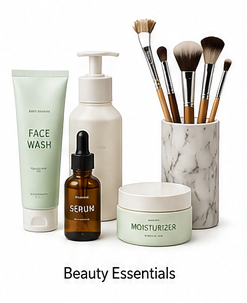
 Beauty Essentials
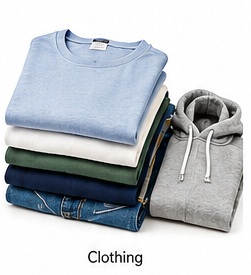 Clothing
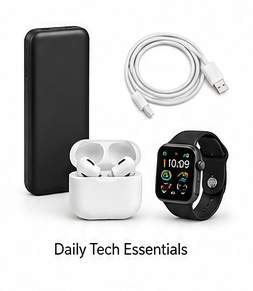 Daily Tech Essentials
 Decorative Items
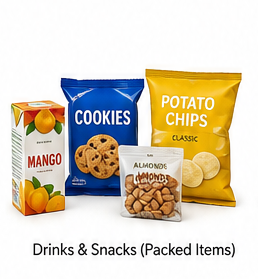 Drinks and Snacks
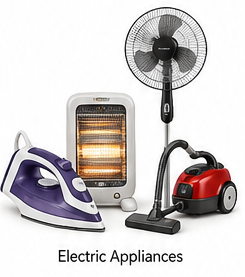 Electric Appliances
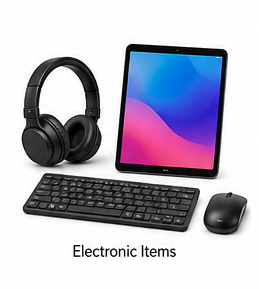 Electronic Items
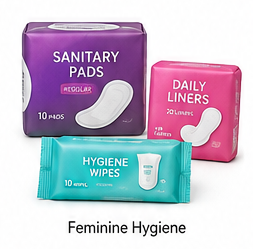 Feminine Hygiene
 Gifting Items
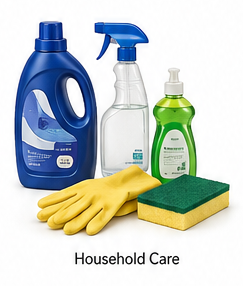 Household Care
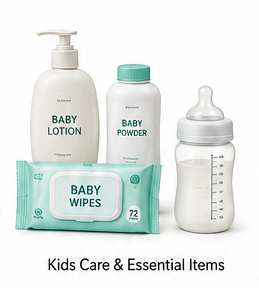 Kids Care and Essential Items
 Life Style and Personal Accessories
 Personal and Self Care Essentials
 Spiritual Items
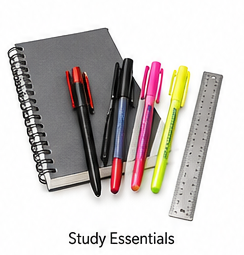 Study Essentials
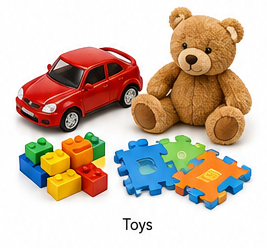 Toys
ToysHow to Register a Product from the Dokan Vendor Panel on AddZena
Selling your products on AddZena is simple once your vendor account has been approved. The Dokan Vendor Panel provides an easy-to-use dashboard where you can add new products, manage inventory, track orders, and monitor your sales.
This guide will walk you through the complete process of adding your first product to your AddZena store using the Dokan Vendor Dashboard.
Why Add Products on AddZena?
Adding quality products with complete information helps customers understand your offerings and increases the chances of making sales. A well-created product listing also improves visibility across the marketplace.
- ✔ Reach thousands of online customers
- ✔ Showcase your products professionally
- ✔ Manage products from a single dashboard
- ✔ Update prices anytime
- ✔ Track product performance
- ✔ Increase your online business
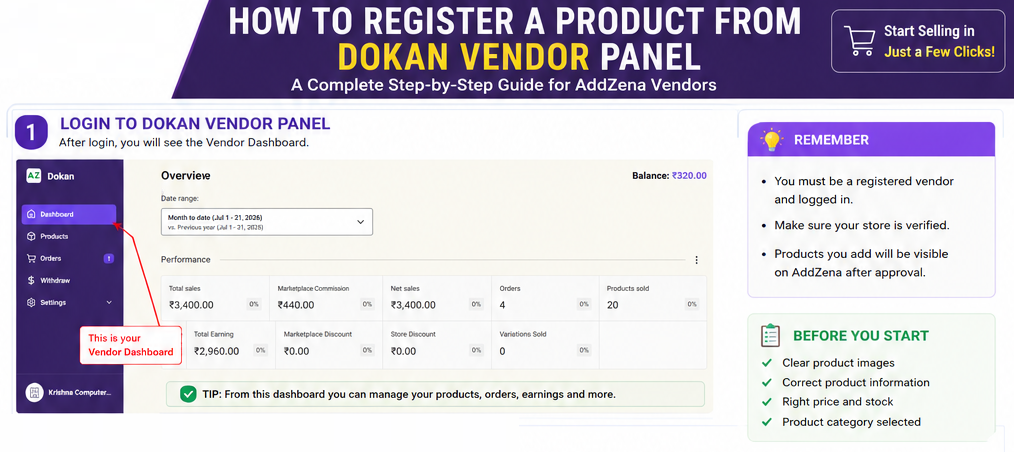
Step 1: Login to Your Vendor Dashboard
After your vendor account has been approved, log in using your registered email address and password.
Once logged in, you will see your Dokan Vendor Dashboard, where you can manage your entire store.
From the Dashboard you can:
- View Sales Overview
- Manage Products
- Check Orders
- Withdraw Earnings
- Update Store Settings
- Track Store Performance
Tip: Bookmark your Vendor Dashboard for quick access.
Step 2: Open the Products Section
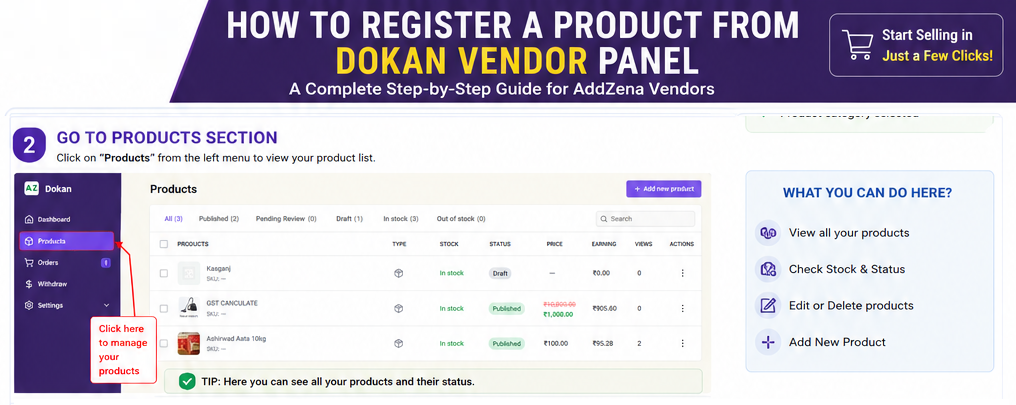
From the left-side menu, click on Products.
This section displays all products currently available in your store. Here you can:
- View Published Products
- Check Draft Products
- Review Pending Products
- Edit Existing Products
- Delete Products
- Check Stock Status
- Monitor Product Views
Step 3: Click on “Add New Product”
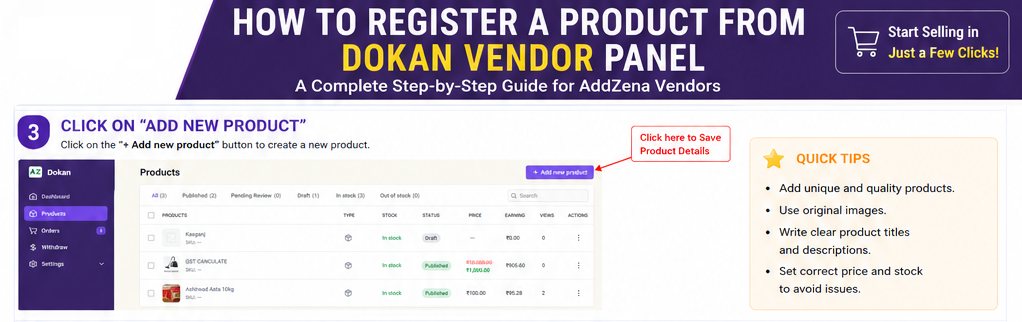
To create a new product listing:
- Click the Add New Product button located at the top-right corner.
- The Product Creation page will open.
- You are now ready to enter your product information.
Step 4: Fill in Basic Product Information
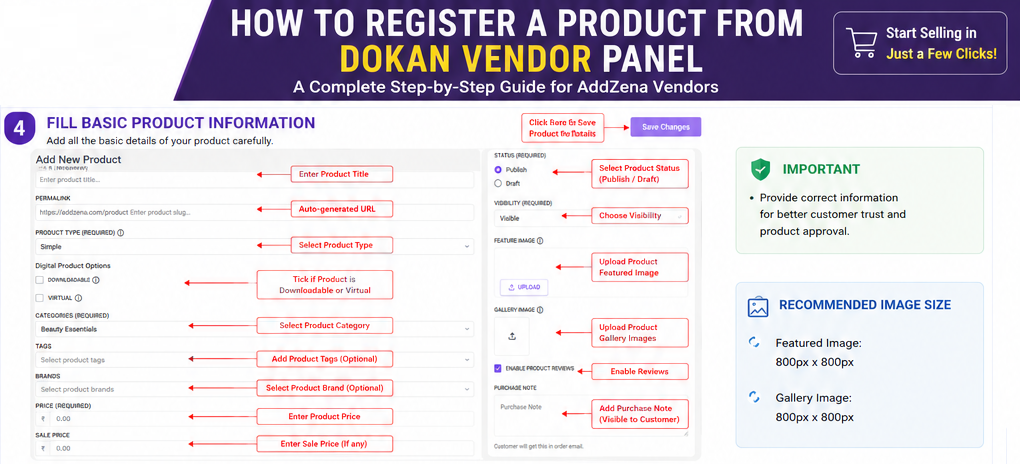
This is the most important step. Enter accurate and complete information so customers can easily understand your product.
Product Title
Enter a clear and descriptive product name.
Examples: Samsung Galaxy M14 5G | Wooden Study Table | Cotton Men’s T-Shirt
Permalink (Product URL)
The permalink is automatically generated from your product title. Make sure it is short and easy to read.
Example: https://addzena.com/product/samsung-galaxy-m14
Product Type
Choose Simple Product, or select Variable Product if your product has different sizes or colors.
Categories & Brand
Select the category (Electronics, Grocery, Fashion, Furniture, etc.) and choose your product’s brand if applicable.
Pricing & Offer
Enter the original price and optional Sale Price. Discounts will be shown automatically to customers.
Example: Original Price: ₹999 | Sale Price: ₹799
Featured & Gallery Images
Upload a high-quality main image (white background recommended) and secondary images showing different angles, close-ups, and packaging.
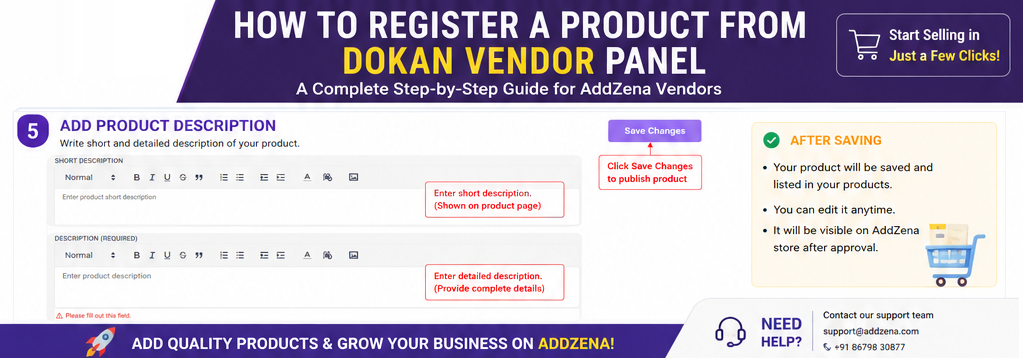
Step 5: Add Product Description
Short Description
Write a brief summary highlighting key features.
Full Product Description
Provide detailed information including overview, specifications, materials, warranty, and package contents to help buyers make informed decisions.
Step 6: Save and Publish Your Product
Review every detail carefully, check spelling and pricing, verify images, and click Save Changes.
If published, your product will be submitted for review or instantly go live on AddZena depending on store permissions.
✔ Tips for Better Product Listings
- Use clear and descriptive product titles.
- Upload high-resolution images from multiple angles.
- Select the correct product category.
- Write detailed and original product descriptions.
- Keep stock and pricing updated.
- Avoid uploading blurry or watermarked images.
❌ Common Mistakes to Avoid
- Using low-quality or watermarked product images.
- Leaving important specifications empty.
- Selecting incorrect categories.
- Writing extremely short or generic descriptions.
- Entering incorrect pricing details.
Frequently Asked Questions (FAQs)
Q1. Can I edit my product after publishing?
Yes. You can edit product details anytime from the Products section in your Vendor Dashboard.
Q2. What image size is recommended?
Use high-quality square images (minimum 800 × 800 pixels) with a clean background for the best presentation.
Q3. Can I save a product without publishing it?
Yes. Choose Draft as the product status and complete the details later before publishing.
Q4. Why is my product not visible?
Your product may be in Draft, Pending Review, or awaiting approval by the AddZena team.